
What Our Customers Are Saying
How to fix NO LINK screen on a Carel PGD1 Display Connected to a PCO Controller
12
Jan
How to fix NO LINK screen on a Carel PGD Display Connected to a PCO Controller
A step by step on what to do when the pCO Graphic Display shows the “No link” text and it is connected to Carel programmable controller
- How to fix NO LINK screen on a Carel PGD Display Connected to a PCO Controller
- A step by step on what to do when the pCO Graphic Display shows the “No link” text meanwhile it is connected to Carel programmable controller
- What a programmable logic controller is? Types of PLC.
- What does a programmable controller do?
- What is an AHU controller? What is a PLC electrical in HVAC?
- What is a Programmable Graphic Display?
- What a pCO Graphic Display does
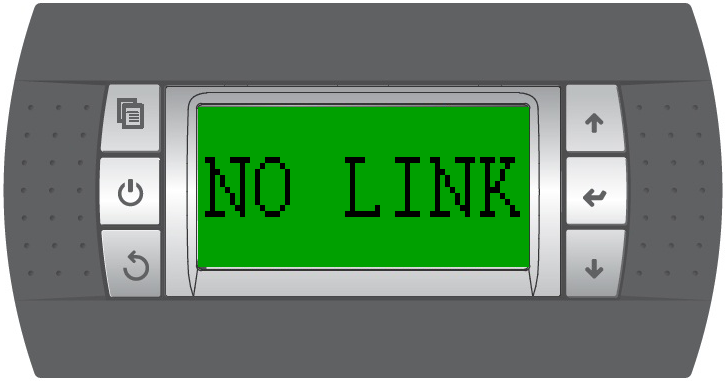
- What NO LINK screen on a Carel PGD1 Display means
- A quick guide step by step through the procedure to clear the NO-LINK message from the Programmable Graphic Display
- Conclusion
- A step by step on what to do when the pCO Graphic Display shows the “No link” text meanwhile it is connected to Carel programmable controller
Sometimes, when you are connecting the Carel pCO Graphic display to the Carel PCO programmable controller, a NO LINK text appears on the screen of the pCO terminal. Even though it is a confusing error message as it does not explain where the issue comes from, here is a quick guide to fix the inconvenience.
What a programmable logic controller is? Types of PLC.
A programmable controller, also known as a programmable logic controller (PLC), is a type of computer used in industrial applications to control manufacturing processes. There are different types of PLCs and these differ in size and the amount of input and output that they are able to handle. The use of PLC differs from the manufacturing process where it is integrated and it is designed to be handled, after the set up, by users with no PLC programming experience.
What does a programmable controller do?
In a few words, a programmable logic controller is in charge of receiving data from its inputs, elaborating this information and then sending instructions by the use of its outputs.
What is an AHU controller? What is a PLC electrical in HVAC?
The PLC controllers are common in the HVAC industry to control air handling units. The AHU controller takes part in the air handling unit system to continuously monitor values such as temperature, humidity, pressure and air quality within an environment by receiving data from its inputs. Following the received information, the controller either maintains the current environment conditions or sends inputs to the other parts of the AHU system to regulate the quality and quantity of the air.
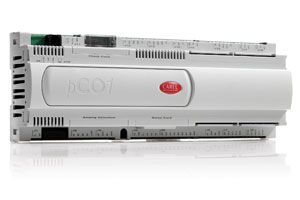
Carel has developed a few versions of these AHU controllers, the Carel pCO programmable controllers with the following main versions:
| Carel PCO1 Controller |
| Carel PCO2 Controller |
| Carel PCO3 Controller |
| Carel PCOX Controller |
In our product catalogue, we have our range of Carel PCOs.
What is a Programmable Graphic Display?
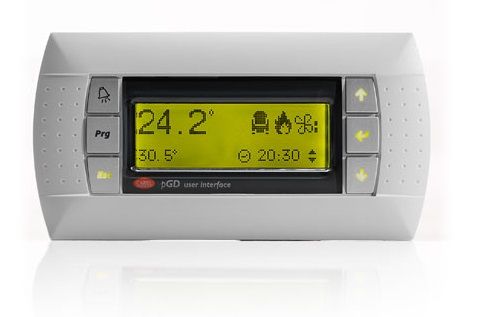
In the AHU systems, the programmable graphic displays are the terminals that show the final user values such as temperature, pressure and humidity of the environment and provide the commands to regulate them.
What a pCO Graphic Display does
The pCO graphic displays are the terminals part of the pCO Sistema and are indeed compatible with the pCO controllers. The Carel graphic display product range includes different versions that differ for size, type of screen and whether they are panel-mounted or wall-mounted.
The Carel pgd1 display is one of the most common displays used with the range of Carel HVAC controllers.
What NO LINK screen on a Carel PGD1 Display means
Imagine, you have just installed the software onto the pCO controller and, unexpectedly, the “No link” message appears on the screen. Even though at the first look this could seem a complicated issue to fix, in a few steps this can be handled.
In a few words, “NO LINK” on the pCO graphic display means that the connection between this terminal and the controller is missing. With that said, we need to make sure that the PCO controller and the display have both two valid addresses and are set up correctly on the PLAN network.
Another reason for the “NO LINK” error message is that the controller is faulty. However, in this article, we assume that all the devices work as expected.
A quick guide step by step through the procedure to clear the NO-LINK message from the Programmable Graphic Display
Here following a video showing the process and the related procedure:
1- Set up a temporary 00 address to the programmable graphic display.
From the graphic display, hold the three buttons on the right-hand side until you will see on the display the cursor blinking.
Then, press the enter button to move the cursor to the editable field containing a number: use the arrows to set “00” value. Press enter to confirm.
2 - Address the controller to 01.
Switch off the controller and then switch it back on. When the controller is switching on, from the display hold simultaneously the bell button and the key button together for a while until a new screen appears.
The following screen shows the PLAN address of the Carel PCO controller: use the arrows to set the number 01. Press enter to confirm.
3- Set the final address onto the graphic display
On the graphics display screen, hold the 3 buttons on the right-hand side simultaneously until a new screen appears, then press enter to go to the modifiable field and use the arrow keys to set the number 32. Press enter to confirm
4- Final step
After a few seconds from confirming you will see the main screen of the display, meaning the display and the pCO controller have the expected addresses and are properly connected to the PLAN network.
Conclusion
In any case, this issue is normally easy to handle and our Production Team, with more than 15 years of experience in AHU controls for industrial and commercial ventilation, will be available to support at the following contacts:
+44 (0)20 81 333 679
1 Comment(s)
Hamid-ameh Shaibu
Oct 30, 2023 11:57
can i use the carel pgd1 to control my fan speed and also start the operation of the compressor of my AHU
Recent Posts
-
Smart Fan Control with EBM Papst IoT Modules & Gateways — Now Available at iACS
 January 22, 2026
 -
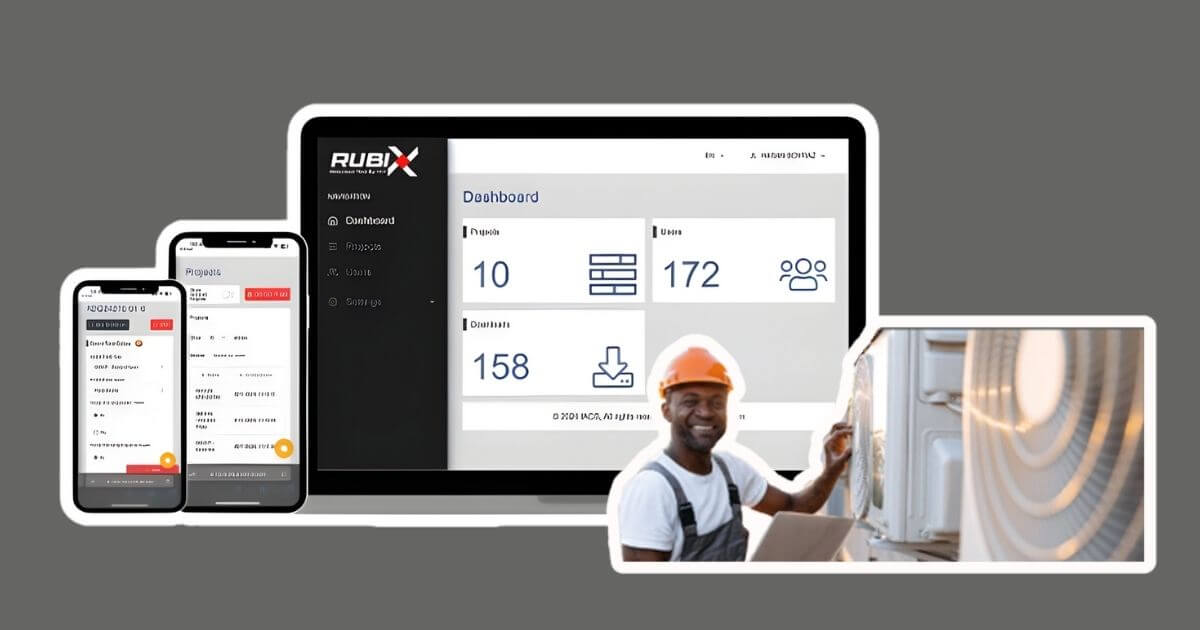
Simplify HVAC Configuration with the Rubix Controls Selection Tool
 December 12, 2025
 -
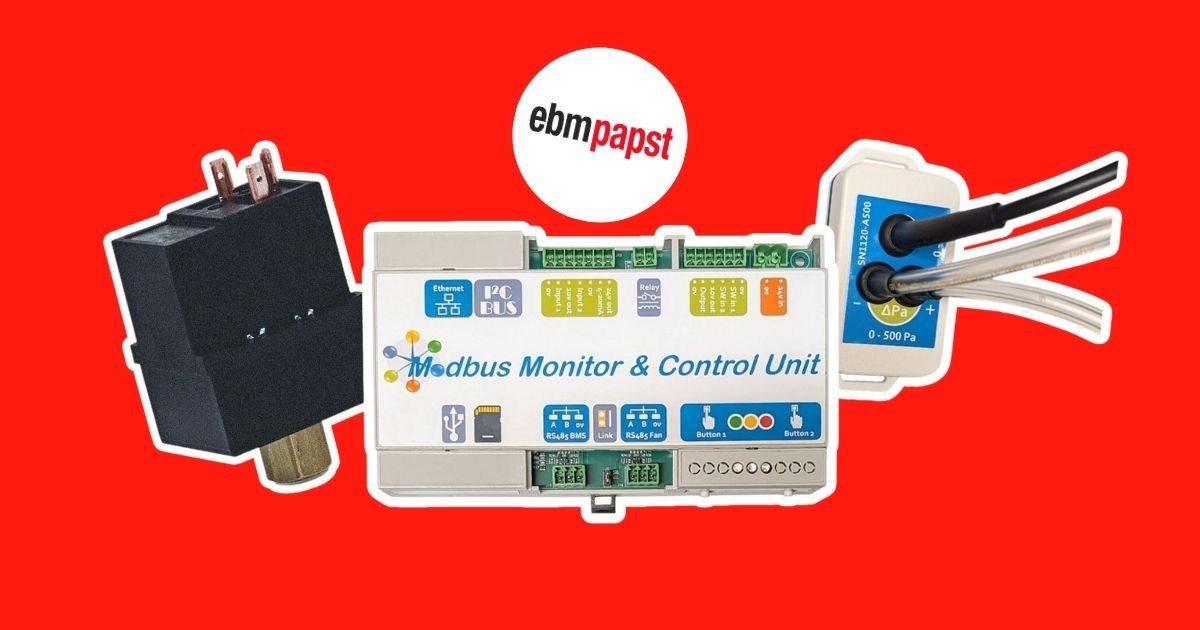
iACS Partners with EBM Papst: Expanding Our HVAC Parts Catalogue with Innovative Fan Control Solutions
 December 9, 2025
 -
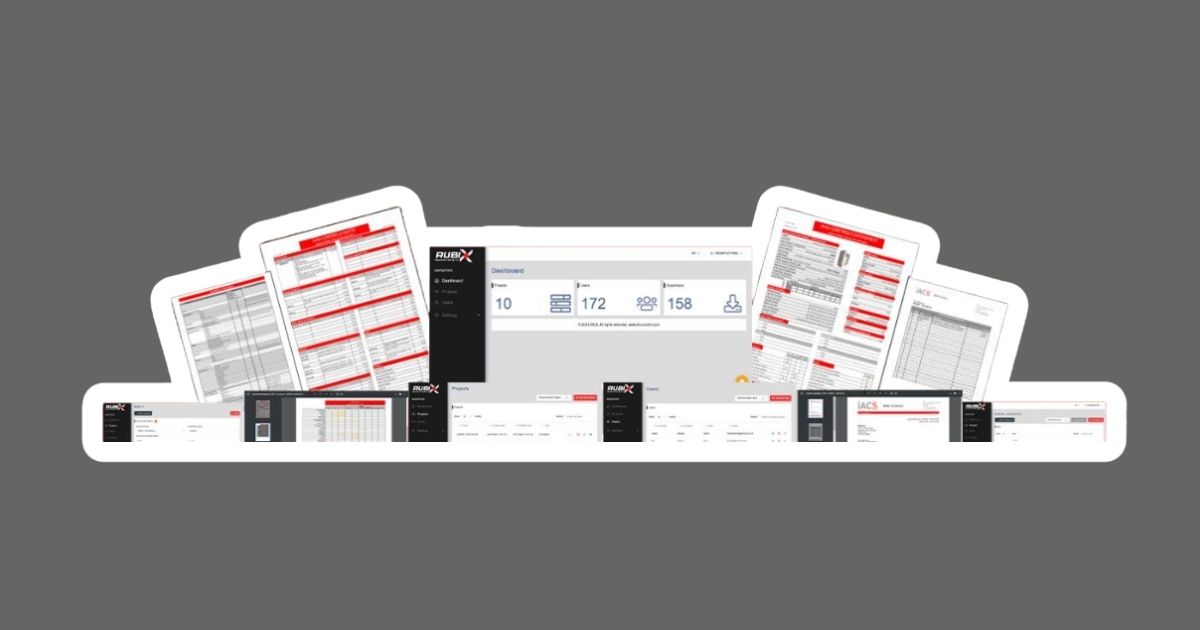
Revolutionising AHU Quoting with Rubix: The Free HVAC Quotation Tool
 December 3, 2025
 -
Optimise Airflow Control with EBM Papst Differential Pressure Sensors at iACS
 November 14, 2025